How to Temporarily Set a Static IP Address on a Linux System

Setting a static IP address on a Linux system temporarily is useful in situations where you need to troubleshoot network issues or configure networking for a specific session.

This temporary change won’t persist after a reboot, but it can be easily applied for immediate network setup needs.

In this guide, we’ll walk through the steps to configure a static IP address on a Linux system using command-line tools.

TecMint Weekly Newsletter
Get the Learn Linux 7 Days Crash Course free when you join 34,000+ Linux professionals reading every Thursday.
Check your email for a magic link to get started.
Something went wrong. Please try again.

Step 1: Check Linux Network Interface

First, identify the name of your network interface by running the following ip command.

ip a

This command will display all the network interfaces available on your system. Look for your active network interface, usually named something like eth0, ens33, or wlan0 (for Wi-Fi).
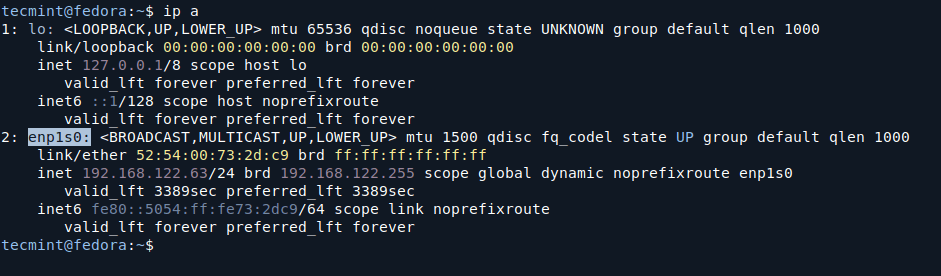
Check Linux Network Interface

Here, enp1s0 is the name of the network interface.

2. Temporarily Assign a Static IP Address on Linux

Once you’ve identified the network interface, use the ip command to assign a temporary static IP address. For example, to assign the IP address 192.168.122.50 with a subnet mask of 255.255.255.0, you can use the following command:

sudo ip addr add 192.168.122.50/24 dev enp1s0

To ensure your system can route traffic properly, you need to set the default gateway, which is typically the IP address of your router or gateway on the local network.

sudo ip route add default via 192.168.122.1

Here, 192.168.122.1 is the IP address of the gateway (router).

Step 3: Verify Network Configuration

After setting the static IP address, you should verify that the changes have been applied correctly.

ip a

Additionally, you can test connectivity by pinging an external site or your gateway:

ping 8.8.8.8

If you get replies, the network configuration is working.

Check Linux Network Configuration

Step 4: Removing Temporary Static IP Address

Since this configuration is temporary, it will revert back to the original settings after a reboot. However, if you want to manually remove the static IP address before rebooting, you can use the following command:

sudo ip addr del 192.168.122.50/24 dev enp1s0

This will remove the static IP address from the network interface.

Conclusion

Temporarily setting a static IP address in Linux can be useful for troubleshooting or specific network setups. The method shown here uses the ip command, which is a modern and versatile tool for managing network configurations on Linux systems.

If this article helped, with someone on your team.

TecMint Weekly Newsletter
Get the Learn Linux 7 Days Crash Course free when you join 34,000+ Linux professionals reading every Thursday.
Check your email for a magic link to get started.
Something went wrong. Please try again.
TecMint has been free for 14 years. Help keep it that way.
Google AI Overviews and tools like ChatGPT have cut into search traffic for independent tech sites like TecMint. Running this site costs over $2,000 every month for hosting, infrastructure, and paying authors to keep the content accurate and tested.

If this article helped you solve a problem, consider buying a coffee. It helps keep TecMint free, supports the authors, and keeps the project going.
☕ Buy Me a Coffee
Ravi Saive
I'm Ravi Saive, an award-winning entrepreneur and founder of several successful 5-figure online businesses, including TecMint.com, GeeksMint.com, UbuntuMint.com, and the premium learning hub Pro.Tecmint.com.

Each tutorial at TecMint is created by a team of experienced Linux system administrators so that it meets our high-quality standards.

Got Something to Say? Join the Discussion...

Thank you for taking the time to share your thoughts with us. We appreciate your decision to leave a comment and value your contribution to the discussion. It's important to note that we moderate all comments in accordance with our comment policy to ensure a respectful and constructive conversation.

Rest assured that your email address will remain private and will not be published or shared with anyone. We prioritize the privacy and security of our users.

Free Course
Get a free Linux course before you go.
Subscribe to TecMint Weekly and get the Learn Linux 7 Days Crash Course free. Read by 34,000+ Linux professionals every Thursday.
Something went wrong. Please try again.
Check your email for a magic link to get started.